Why Your Monitor Matters More Than Most Buyers Realise
Upgrading a GPU is often seen as the biggest performance jump in a PC. But in reality, your monitor decides how much of that performance you can actually experience.
A mismatched monitor can quietly waste GPU power, cause perceived lag, or make a powerful upgrade feel underwhelming. This guide explains how monitor choice directly affects GPU performance and how to pair both intelligently.
How a Monitor Bottlenecks GPU Performance
A GPU renders frames, but your monitor decides how many of those frames you can see and how smoothly they appear.
If your GPU outputs 120 FPS and your monitor refreshes at 60Hz, half your GPU’s effort never reaches your eyes. The GPU is not slow. The display is the limiter.
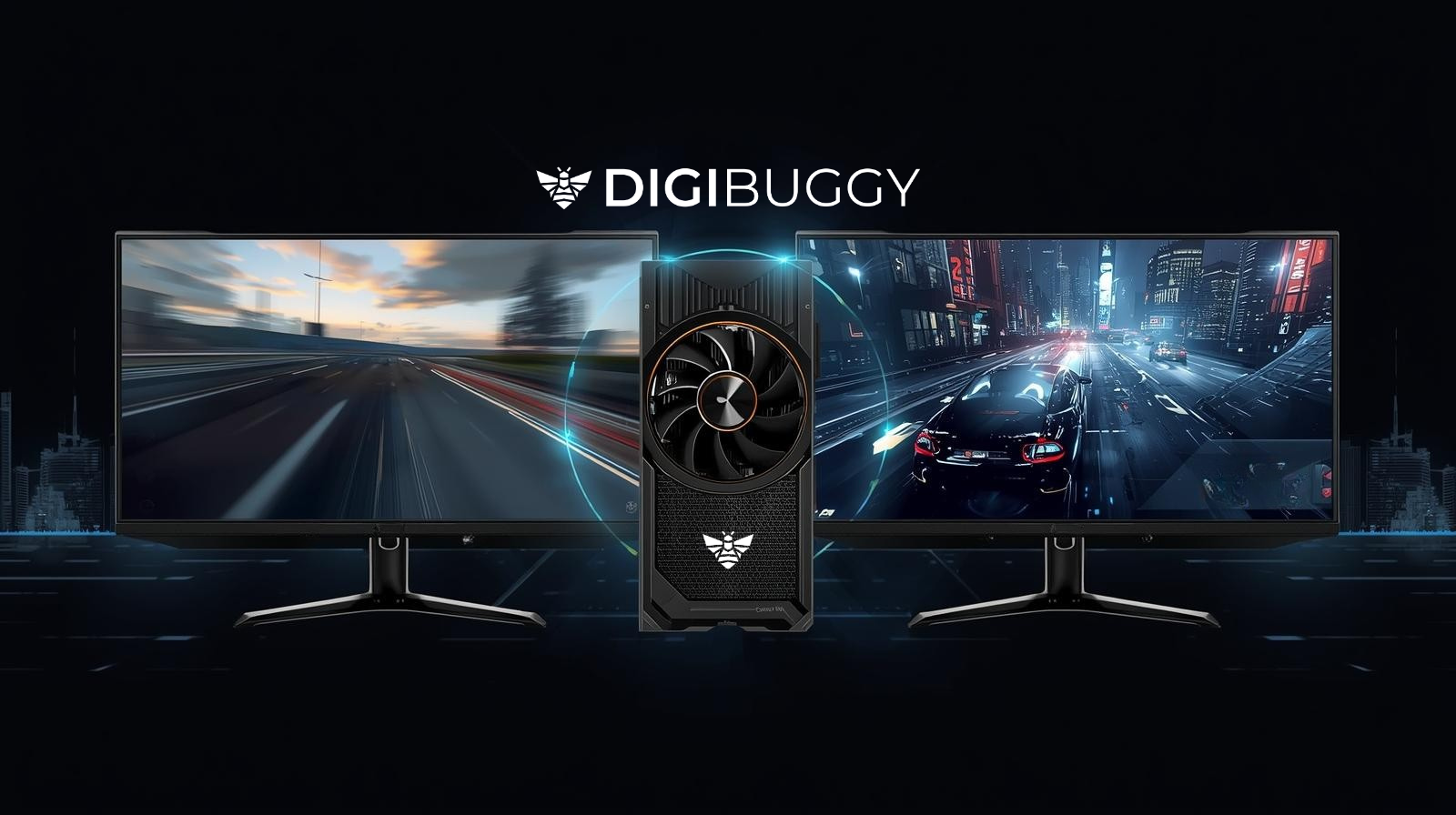
This is why experienced builders approach PC planning as a system, not a list of parts. At Digibuggy, GPU recommendations are always tied to display capability and usage context, not raw specs alone.
Resolution vs GPU Load: The Fundamental Trade-Off
► 1080p (Full HD)
1080p puts the least strain on a GPU and delivers the highest FPS.
♦ Best suited for
- Competitive gamers
- Budget to mid-range GPUs
- High refresh rate monitors (144Hz+)
Common mistake
Pairing a powerful GPU with a basic 60Hz 1080p monitor and feeling no real improvement.
► 1440p (QHD)
1440p offers a balance between sharp visuals and manageable GPU load.
♦ Best suited for
- Mid-range GPUs
- Story-driven games
- Mixed gaming and productivity
This is the most balanced resolution for many Indian users today.
► 4K (Ultra HD)
4K dramatically increases GPU workload and prioritises clarity over frame rate.
♦ Best suited for
- High-end GPUs only
- Professional content creation
- Cinematic gaming
Buying a 4K monitor without GPU headroom often leads to stutters and frustration.
Refresh Rate: Where Performance Is Felt, Not Just Measured
► 60Hz Displays
60Hz caps visible output at 60 FPS.
While fine for casual use, it limits the responsiveness and smoothness that modern GPUs can deliver, especially in fast-paced games.
► 144Hz and 165Hz Displays
This is where GPU upgrades become visibly rewarding.
- Smoother motion
- Lower input lag
- Better overall responsiveness
Many Digibuggy users report that moving from 60Hz to 144Hz felt more impactful than upgrading their GPU alone.
► 240Hz and Higher
Designed for esports players chasing consistency at extremely high FPS.
These displays require GPUs that can sustain high frame rates consistently; performance feels uneven rather than smooth.
Panel Type and Visual Output Quality
Your GPU’s output quality is only as good as the panel displaying it.
► IPS Panels
- Accurate colors
- Better for creators and mixed-use
- Slightly slower response than TN, but far superior visuals
► VA Panels
- Higher contrast
- More immersive visuals
- Can show motion blur in fast scenes
► TN Panels
- Fastest response times
- Lower color quality
- Mostly relevant for competitive esports setups
A strong GPU paired with a poor panel hides visual improvements like texture detail and lighting quality.
Adaptive Sync: Why It Makes GPUs Feel Smoother
Adaptive sync technologies like FreeSync and G-SYNC align GPU frame output with the monitor refresh rate.
This reduces:
- Screen tearing
- Sudden stutters
- Perceived lag during FPS drops
For Indian users dealing with heat, long sessions, and variable performance, adaptive sync significantly improves real-world smoothness.
Real-World GPU and Monitor Pairing Examples
► High GPU + Basic Monitor
- GPU capable of 140 FPS
- 1080p 60Hz display
Result
Performance is wasted. The upgrade feels minimal.
► Balanced Setup
- Mid-range GPU
- 1080p or 1440p 144Hz monitor
Result
Smooth gameplay, consistent performance, and visible improvement.
► Monitor Ahead of GPU
- 1440p or 4K monitor
- Entry-level GPU
Result
Low FPS, stutters, and frustration. The GPU gets blamed incorrectly.
This is a common issue Digibuggy resolves during pre-build consultations.
Why Monitor Planning Should Come Before GPU Upgrades
A smarter upgrade path looks like this:
- Decide target resolution and refresh rate
- Choose a monitor that fits your usage
- Select a GPU that can sustain that output
This avoids unnecessary upgrades and saves money long-term.
Digibuggy follows this consultation-first approach to prevent mismatches and overspending.
Frequently Asked Questions
► Can a monitor really bottleneck a GPU?
♦ Yes. Monitor resolution and refresh rate directly limit how much GPU output you can experience. A powerful GPU paired with a low refresh rate or high-resolution display can feel slower than expected.
► Is upgrading to a 144Hz monitor worth it?
♦ For gaming and even daily desktop use, 144Hz provides noticeably smoother motion and responsiveness. Many users feel this upgrade delivers a bigger real-world improvement than increasing GPU power alone.
► Should I upgrade my monitor or GPU first?
♦ If your GPU already delivers high FPS but your monitor is limited, upgrading the monitor first often provides better visible gains than changing the GPU.
► Does monitor size affect GPU performance?
♦ Screen size alone does not affect performance, but larger screens often push users toward higher resolutions, which significantly increase GPU load and performance requirements.
Final Takeaway: Performance Is a Chain, Not a Single Part
A GPU does not work in isolation. Your monitor decides how much of its power you can actually enjoy.
Choosing the right display can unlock performance you already paid for, while a wrong choice can quietly waste it.
If you want help pairing your GPU and monitor correctly based on your games, workload, and budget, Digibuggy offers expert-guided consultations built on real system experience, not guesswork.
Smart performance is not about buying more.
It is about pairing right.